Mastering JSON Formatting: Essential Tips for Developers
Learn how to effectively handle and format JSON data, and tips to avoid common mistakes.
JSON: The Common Language of Modern Web Development
As a web developer, you encounter JSON dozens of times a day. JSON is there in every moment - checking API responses, modifying configuration files, processing data fetched from databases. The reason JSON (JavaScript Object Notation) is so widely used is simple: it's easy for humans to read, easy for machines to parse, and natively supported in almost every programming language.
However, JSON that looks simple can easily lead to unexpected pitfalls when you actually work with it. Using single quotes and encountering parsing errors, or spending an hour debugging because of a trailing comma - every developer has been there at least once. Today, we'll learn how to handle JSON more effectively and tips to avoid common mistakes.
Understanding JSON's Basic Structure
JSON is based on two structures: objects (collections of name/value pairs) and arrays (ordered lists of values). The charm of JSON is that almost any complex data can be expressed with just these two structures.
{
  "user": {
    "name": "John Developer",
    "age": 28,
    "isActive": true,
    "skills": ["JavaScript", "TypeScript", "React"],
    "address": null
  }
}
JSON supports only six data types: string, number, boolean, null, array, and object. Unlike JavaScript, undefined, functions, and Date objects cannot be directly represented in JSON. When dealing with dates, the convention is to express them as ISO 8601 format strings ("2025-12-26T09:00:00Z").
Common JSON Mistakes Developers Make
There are areas where even experienced developers often make mistakes. Most of these issues arise from confusion with JavaScript's object literal syntax.
The most common mistake is using single quotes. In JavaScript, you can freely use single or double quotes, but JSON only allows double quotes. This rule applies to both keys and string values.
// Wrong example - causes parsing error
{ 'name': 'John' }

// Correct example
{ "name": "John" }
The second most common mistake is the trailing comma. In JavaScript or TypeScript, leaving a comma after the last element of an array or object is fine and sometimes even recommended for cleaner git diffs. But in JSON, this is a syntax error.
// Wrong example
{
  "items": [
    "apple",
    "banana",
  ]
}

// Correct example
{
  "items": [
    "apple",
    "banana"
  ]
}
Attempts to use comments are also common. JSON officially does not support comments. If you need comments in configuration files, consider JSON5 or JSONC (JSON with Comments) formats. This is exactly why VS Code's settings files use the JSONC format.
Making Messy JSON Readable
JSON from API responses or logs is usually compressed into a single line. This is a natural optimization for network transmission efficiency, but it's painful when debugging. This is when you need a JSON formatter.
// Minified state
{"users":[{"id":1,"name":"Alice","email":"alice@example.com"},{"id":2,"name":"Bob","email":"bob@example.com"}]}

// Beautified state
{
  "users": [
    {
      "id": 1,
      "name": "Alice",
      "email": "alice@example.com"
    },
    {
      "id": 2,
      "name": "Bob",
      "email": "bob@example.com"
    }
  ]
}
JSON with indentation allows you to grasp the data structure at a glance. You can visually confirm the depth of nested objects, and it's clear where each array element starts and ends. Conversely, when deploying to production, removing whitespace and line breaks to reduce size is recommended. For large JSON files, compression alone can reduce size by 20-30%.
Practical Tips for API Debugging
When testing APIs in the terminal, the combination of curl and jq is a powerful weapon. jq is a command-line tool for processing JSON that can not only pretty-print but also filter and transform data.
# Pretty print API response
curl -s https://api.example.com/users | jq '.'

# Extract only the first user's name
curl -s https://api.example.com/users | jq '.data[0].name'

# Extract email list for all users
curl -s https://api.example.com/users | jq '.data[].email'
You'll often work with JSON in browser developer tools too. When viewing API responses in the Network tab, using the Preview tab instead of the Response tab shows automatically formatted JSON. However, external tools are still needed when you want to copy and use it elsewhere.
Navigating Complex Data with JSON Path
When you need to find specific values in large-scale JSON data, JSON Path is useful. Just as XPath navigates XML, JSON Path is a query language for navigating JSON data.
// Complex JSON structure
{
  "store": {
    "name": "Online Bookstore",
    "books": [
      { "title": "JavaScript: The Definitive Guide", "price": 35000, "inStock": true },
      { "title": "The Art of React", "price": 32000, "inStock": false },
      { "title": "Node.js Textbook", "price": 28000, "inStock": true }
    ]
  }
}

// JSON Path examples
$.store.books[*].title          // All book titles
$.store.books[?(@.inStock)].title   // Only titles of books in stock
$.store.books[?(@.price < 30000)]   // Books under $30
Such queries are particularly useful for test automation and data validation. API testing tools like Postman also support JSON Path, so learning it can be applied in many places.
Wrapping Up
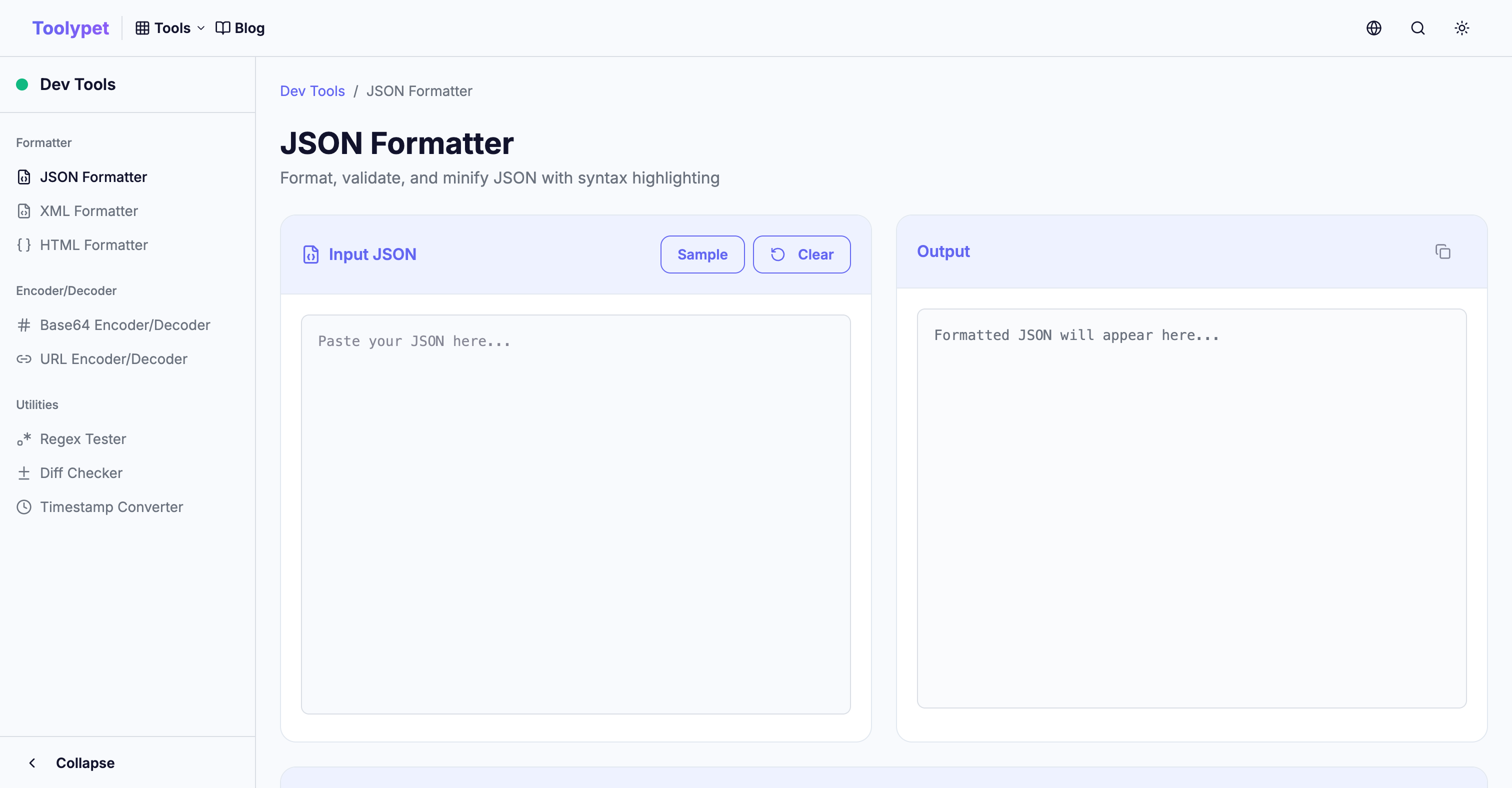
JSON is a simple format, but handling it well can greatly increase development productivity. Use appropriate tools to improve readability, validate syntax, and quickly extract needed data. Toolypet's JSON Formatter can handle formatting, compression, and syntax validation all in one place, making everyday JSON work much easier.
Next time an API response is bunched into one line and feels frustrating, or when there's a parsing error and you can't figure out where the problem is, I hope this tool comes to mind.